.svg)

-p-32.png)

Quick start


QUICK START
Introduction
Our SaaS platform equips teams with powerful AI tools, real-time dashboards, and automated workflows designed to streamline operations and accelerate growth.
This Help Center provides step-by-step guidance, best practices, and troubleshooting for every part of the system.
Build Your First Workspace
Set up, customize, and launch your first workspace in minutes. This quick guide walks you through the essential steps to start using the platform effectively.
Step 1: Create a New Workspace
Begin by creating a workspace from your dashboard.
Add team members, set permissions, and choose the modules you need — from AI assistants to analytics and automation.
Step 2: Configure AI Tools
Train models, connect your data sources, and define rules for automated tasks.
Our AI tools adapt to your workflows, improving accuracy and efficiency over time.
Step 3: Monitor Everything in Real Time
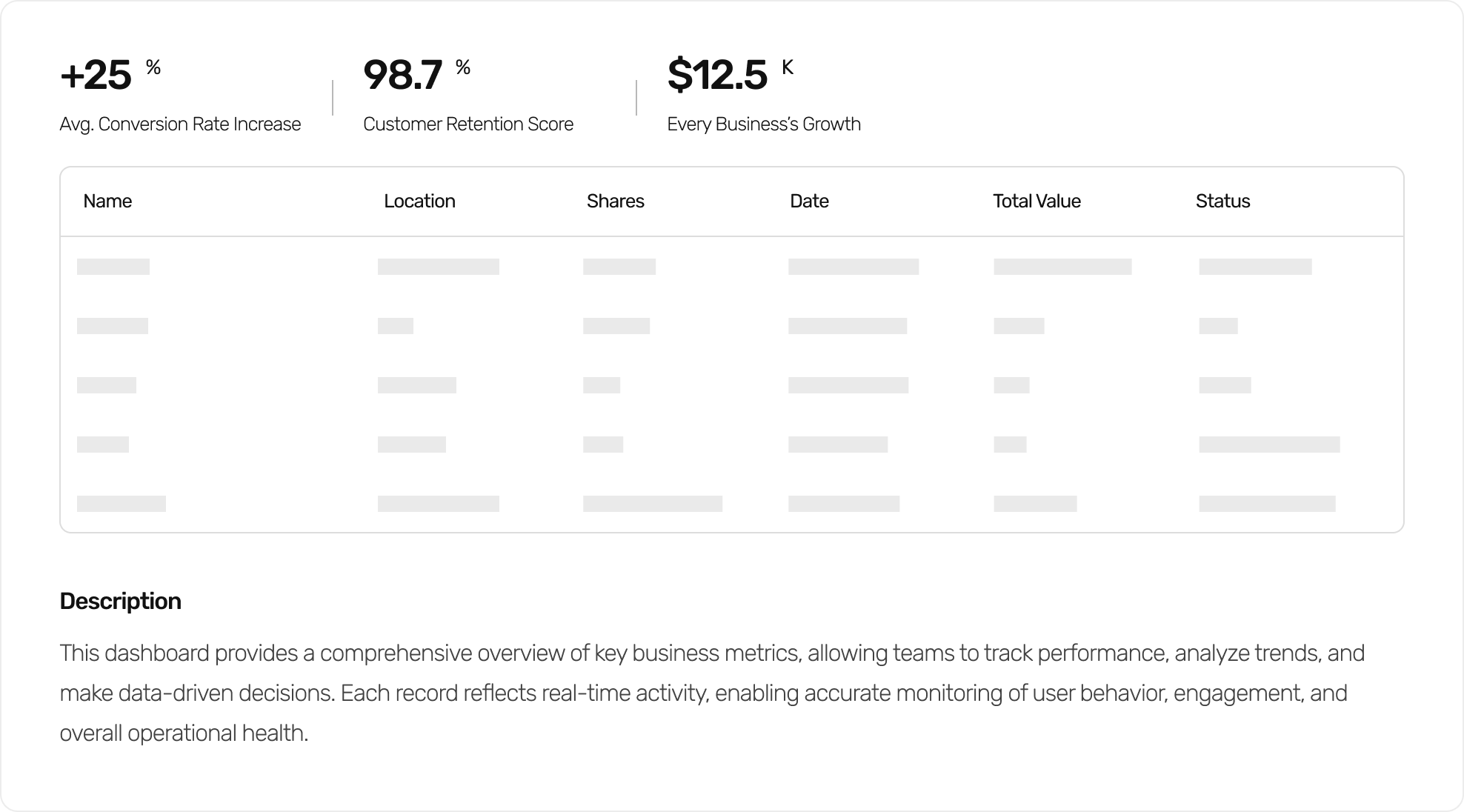
Use built-in dashboards to visualize performance, track activities, and identify actionable insights.
Customize widgets, export reports, and automate alerts to stay informed.
Help Menu
Monitor Your Business
Stay on top of your company’s performance with real-time data, easy-to-use dashboards, and smart insights. This page helps you understand how to track what’s happening and make informed decisions quickly.
Real-Time Dashboards
View your most important metrics as they update.
Track revenue, activity, customer behavior, and overall performance in one place.
Custom Widgets
Choose the widgets you want to see.
Rearrange, resize, and personalize your dashboard to highlight what matters most.
Instant Alerts
Get notified when key numbers change.
Set simple rules to receive alerts about spikes, drops, or unusual patterns.
AI Insights
Our AI helps you interpret trends and highlights what needs attention.
It provides quick suggestions to help improve performance and efficiency.
Help Menu
Pricing
Learn how pricing works, what’s included in each plan, and how to manage your subscription. This guide helps you understand costs, billing cycles, and how to choose the right plan for your team.
Plans Overview
We offer flexible plans designed for teams of all sizes.
Each plan includes core features, with higher tiers adding more advanced tools and capacity.
Billing & Payments
You can choose monthly or yearly billing.
Yearly plans offer a discounted rate.
Payments can be managed directly from your account settings. You can update cards, view invoices, and download receipts anytime.
Payments can be managed directly from your account settings. You can update cards, view invoices, and download receipts anytime.
Upgrading or Downgrading
Easily switch plans as your needs change.
Upgrades take effect immediately.
Downgrades apply at the start of your next billing cycle.
Free Trial
Most plans come with a trial period so you can explore features before subscribing.
No commitment required.
Refunds
We do not offer automatic refunds, but our support team is here to help if you experience any issues.
Help Menu
Features
Explore the core features that help you manage operations, track performance, and automate work. This page gives you a quick overview of what each tool does and how it supports your business.
Unified Dashboard
View all key data in one place.
Track performance, monitor activity, and stay updated without switching tools.
AI Insights
Get smart suggestions based on real-time patterns.
Use AI to highlight trends, detect issues, and support better decision-making.
Automation Tools
Automate repetitive tasks and streamline daily workflows.
Reduce manual work so your team can focus on high-value tasks.
Reporting & Analytics
Generate clear, customizable reports in seconds.
Export data, track progress, and measure performance over time.
Team Management
Add users, assign roles, and set permissions.
Control access and keep your workspace organized and secure.
Integrations
Connect your favorite tools with ease.
Sync data across platforms and keep everything up to date automatically.
Help Menu
Chat Logs
Learn how to view, search, and manage all your conversations in one place. This guide explains how chat history works and how to keep communication organized across your workspace.
Viewing Chat History
Access all past conversations directly from your Chat Logs page.
Open any thread to review messages, timestamps, and participants.
Searching & Filtering
Use keywords, dates, or user filters to quickly find specific chats.
Perfect for locating important decisions or past discussions.
Conversation Details
Each chat includes metadata like time, sender, and related actions.
Helpful for tracking issues, task progress, or internal approvals.
Exporting Chat Logs
Download chat threads for reporting or documentation.
Exports are available in common formats for easy sharing.
Archiving & Deleting
Archive old conversations to keep your workspace clean.
Delete chats you no longer need, depending on permission settings.
Permissions & Access
Admins can control who can view, export, delete, or manage chats.
Set access rules to protect sensitive information.

Tailored OTC Execution
Our team will assess your transaction, recommend the appropriate structure, and handle every step of the process, from onboarding to final settlement.
24-72
h
Average Settlement Time
4
x
Faster Than Traditional Wire
2
OFFICES
Costa Rica & United States
4
STRUCTURES
Off-Ramp Solutions Available
+100
y
Combined Team Experience
.png)
Social Media